With Quizgecko’s Chattutoring feature, you can interact directly with your uploads, including PDF files, using AI. Simply upload your document and start asking questions or request explanations — all in one conversation!
How to use Chat:
- Upload your document or ask a question Start by selecting Chat in the left-hand navigation bar. Then, upload a document for the AI to start analyzing, or ask the AI a question directly. You can upload PDFs, images, and text documents.
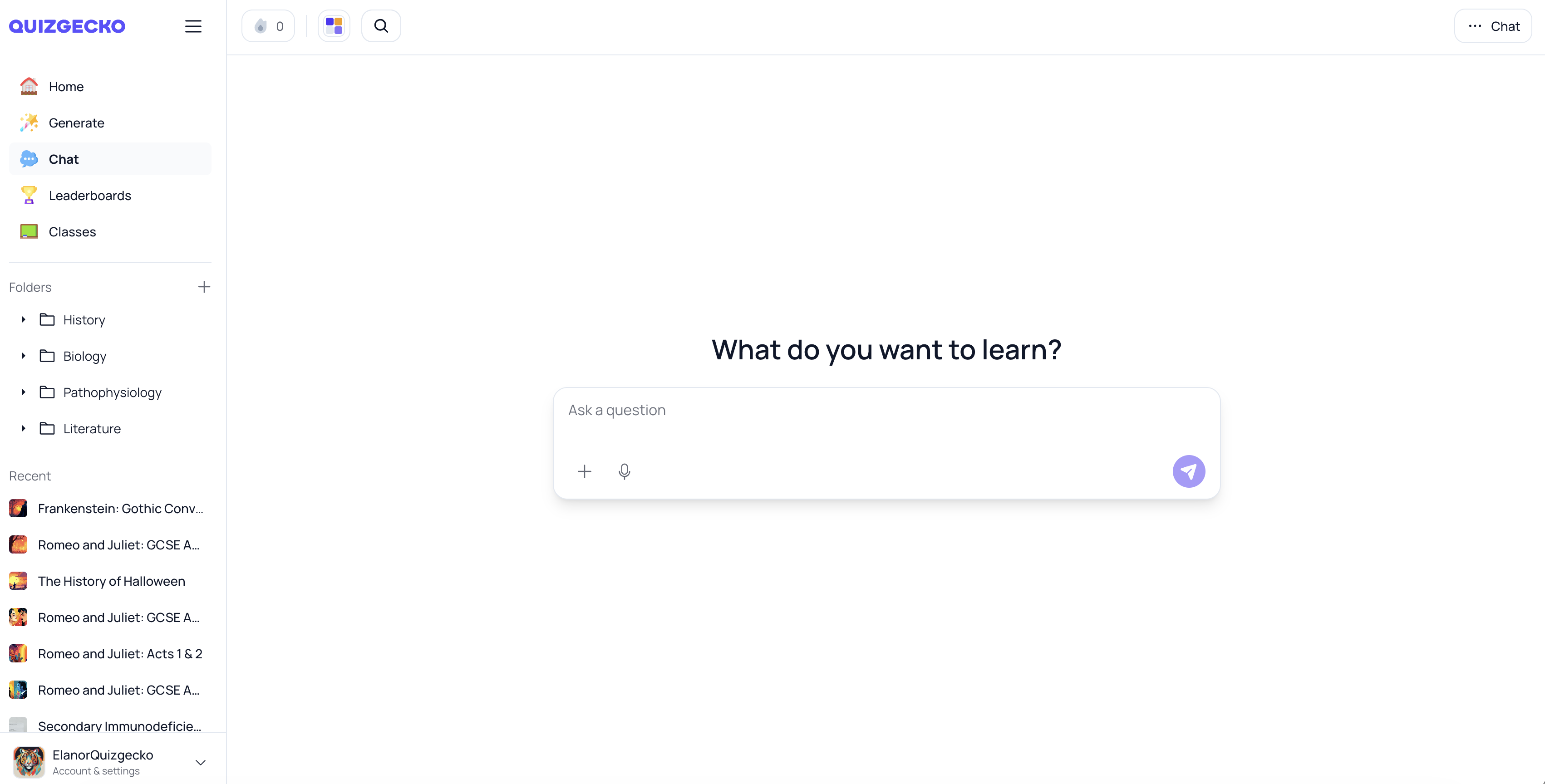
- Ask the Chat any questions you may have
Chat will read the whole document, generate an answer in the main panel, and often show clickable follow-up prompts you can use to keep exploring without typing. You can keep asking new questions and scroll up to review earlier answers, all while staying in the same conversational flow.
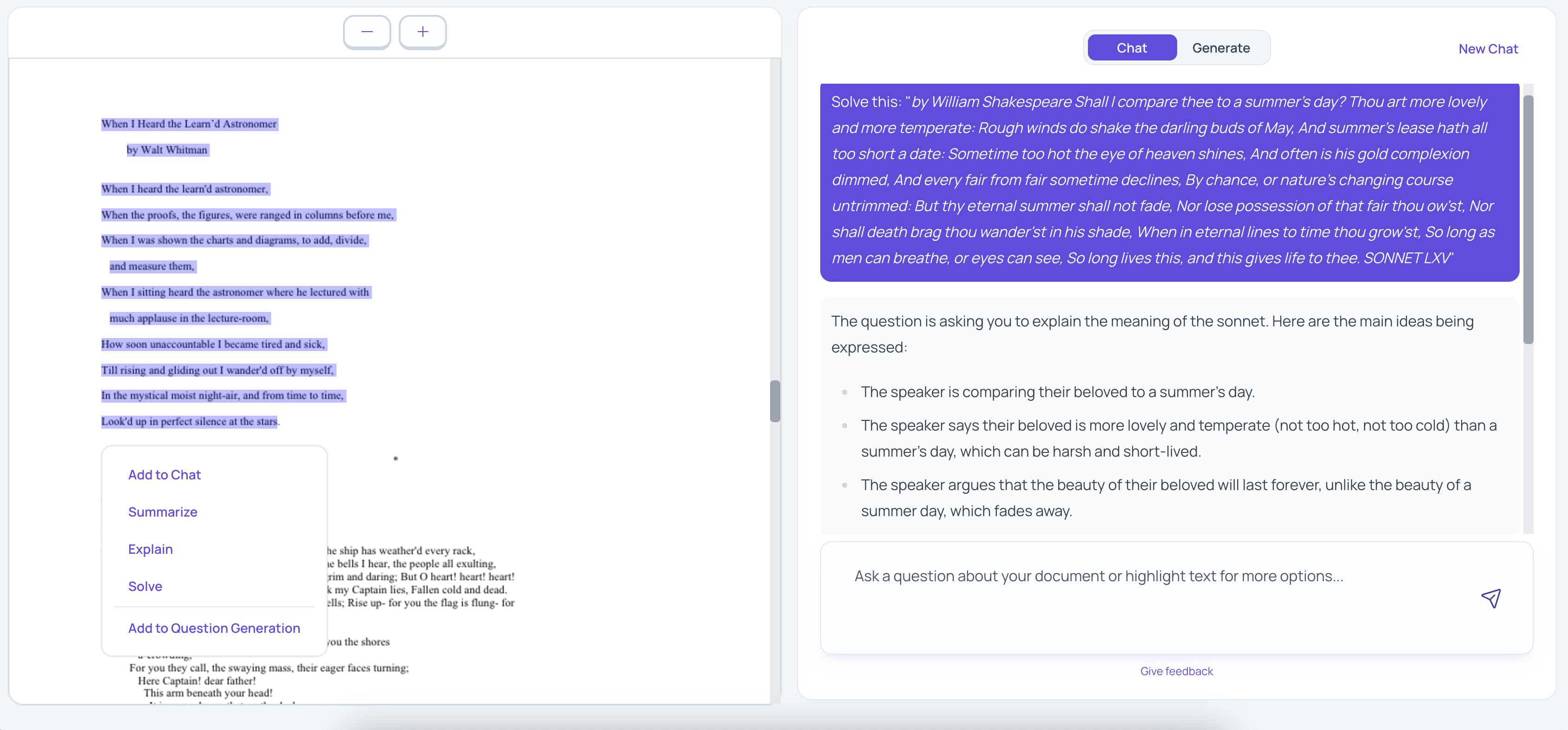
 3. Highlight for more options
You can also highlight sections of your PDF and choose from additional actions:
1. **Add to Chat** – Engage in further discussion about the highlighted content.
2. **Summarize** – Get a concise summary of the selected section.
3. **Explain** – Get a more detailed explanation of the highlighted content.
4. **Solve** – Generate answers or solutions based on specific problems in your PDF.
5. **Add to Question Generation** – Turn the highlighted text into quiz questions and flashcards
- Continue the conversation
You can keep asking questions or using these options to explore the content of your document, making your study process more interactive and personalized.
Why use Chat?
- Instant answers: Get responses to specific questions about your study materials in seconds.
- Deepen understanding: Use features like summarizing, explaining, or solving to engage deeply with your document.
- Flexible study options: Whether you need help solving problems or simply want to convert text into quizzes, Chat has you covered.
Try Chat today!
Upload a document and start chatting with your study material, making learning faster and easier.